Blue Eye
Intelligent security hub that centralizes control of home safety systems into a single, intuitive interface. Designed for clarity and speed, it delivers real-time alerts, streamlined device management, and easy customization. With reliable automation and responsive design, BlueEye ensures users stay informed, secure, and in control—whether at home or away.
The Challenge
The M Installer was intelligently streamlined to enhance efficiency, with the installation process organized into four clear stages: Setup, Device Pairing, Programming, and Testing. This structured approach minimizes complexity, reduces errors, and ensures a smooth workflow, allowing installers to move seamlessly from one step to the next while maintaining accuracy and speed throughout the project.
Checklist
Blue Eye mobile home security system, the user should first check the system status to confirm all sensors and devices are active. Next, they can arm the system in Stay or Sleep mode, or disarm it if needed. The user should then view camera feeds to verify the home visually, control lights as desired, and operate the garage, shutters, and curtains.
In case of emergencies, the panic mode should be triggered. Each step should be confirmed as complete, ensuring the system is properly monitored and the home remains secure at all times.

Research & Insights
Designing meant addressing one of the biggest frustrations users experienced in smart security systems: fragmented control across multiple features and devices.
Users had to navigate through separate sections to control alarms, automation, cameras, and access devices. Simple actions like unlocking a door, checking live footage, or turning off the alarm often required switching between multiple screens. During interviews and usability testing, many users reported feeling lost inside the app or forgetting where important actions were located.
Another recurring issue was the lack of clear system feedback. When arming or disarming the system, users were often unsure whether the action had successfully completed. Delayed responses and unclear status changes created hesitation and reduced trust in the system, especially during stressful moments.
To better understand user expectations, I analyzed smart home and security platforms focused on connected device ecosystems. The research explored how modern apps handle:
Unified device management
Quick access to critical actions
Real-time system feedback and confirmations
Navigation between multiple device categories
Visibility of active states and live events
These insights shaped a more centralized and predictable experience, where important actions became easier to access and system status remained visible and understandable at all times.
Data
70% of smart home users from Millennials and Gen Z reported wanting more intuitive and centralized control over their home security systems, while only a small percentage felt fully confident managing automation, cameras, and alarm settings independently.
References: Parks Associates: “Smart Home Consumer Insights.” Parks Associates, 2023. Statista: “Smart Home Technology Usage Among Millennials and Gen Z.” Statista Research Department, 2023.
Hypothesis
Providing accessible, intuitive, and personalized guidance within the Blue Eye app will increase user engagement with smart home and security features, as users will feel more confident managing alarms, cameras, automation, and connected devices independently.
Area Statuses
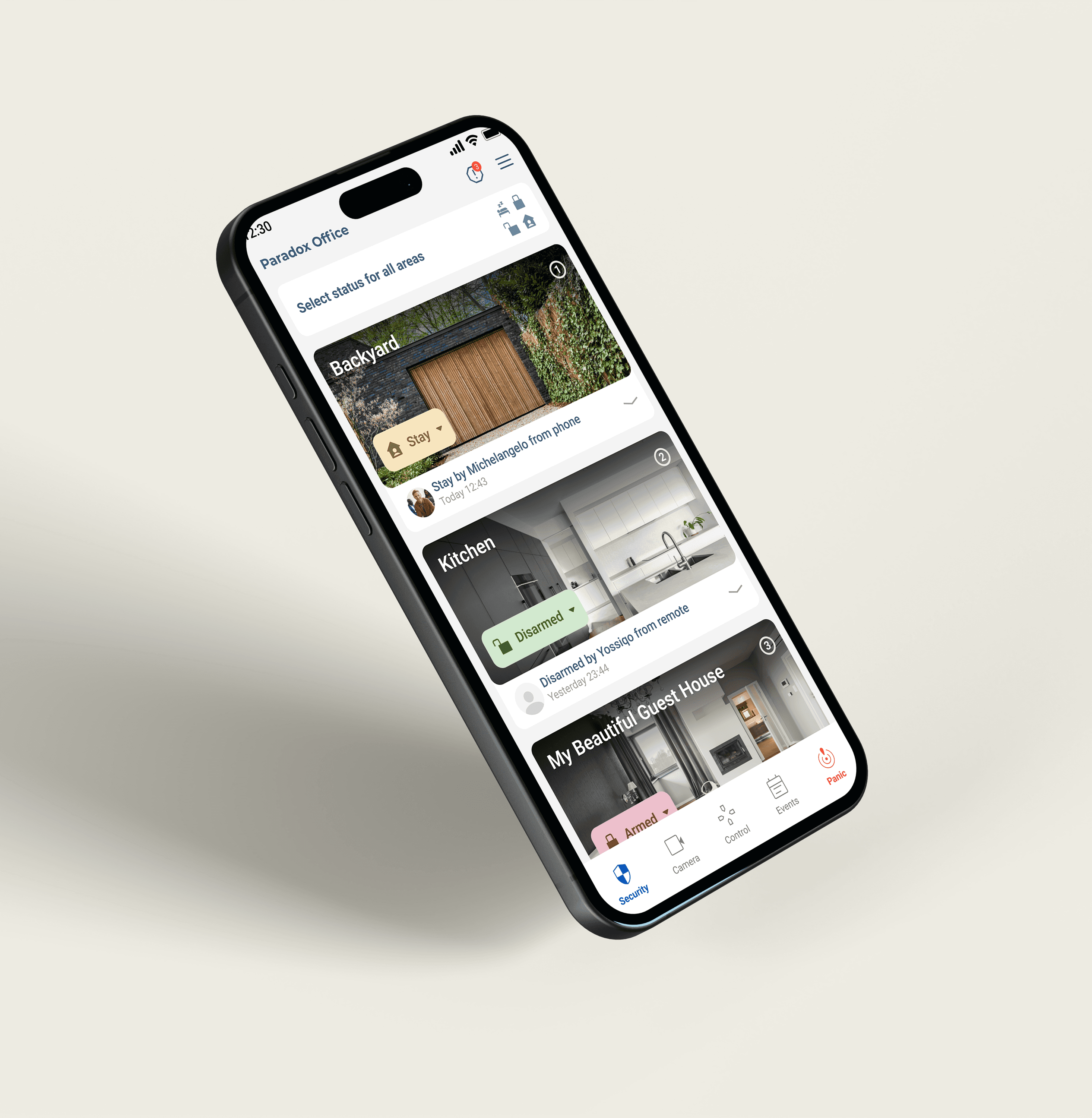
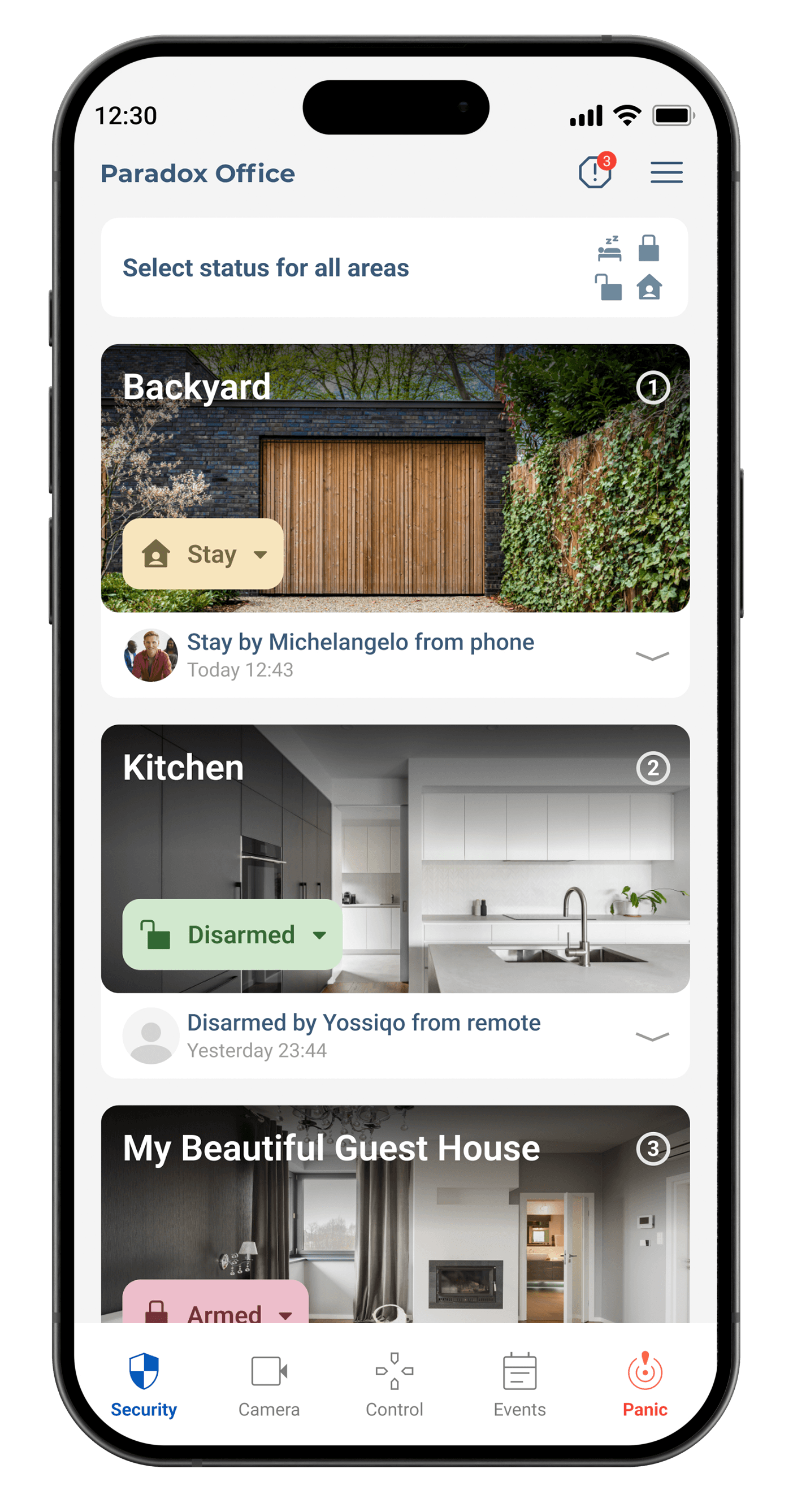
Designed intuitive area status interfaces for Arm, Disarm, Stay, and Sleep modes, ensuring users could instantly understand system states and switch security modes with confidence. Focused on clear visual hierarchy, recognizable status indicators, consistent interactions, and fast access to essential security controls across the application.


Action
Not Action


The safest home is the one that's always aware.

Area Statuses UX BreakPoint
Area statuses (Arm, Disarm, Stay, Sleep) require a clear UX model that reduces cognitive load and prevents critical mistakes. A strong solution treats each status as a distinct system state with visible hierarchy, color, and contextual explanation. The interface should always show the current state prominently, using a large label and supporting iconography, while secondary states remain accessible but not competing for attention.
Transitions between states must be explicit, with confirmation steps for high-risk changes like arming. A timeline or activity log can reinforce trust by showing recent state changes. Context-aware suggestions improve usability, for example recommending 'Stay' when users are at home or 'Arm Away' when no motion is detected. Color should be consistent: green for Disarm, red for Arm, amber for Stay, and blue or muted tones for Sleep. Accessibility requires redundant cues such as text labels and haptic feedback.
Error prevention is key, including blocking unsafe transitions and providing undo windows. Overall, the UX should prioritize clarity, safety, and predictability across all area status interactions. Micro-interactions should confirm every change instantly, while background system indicators ensure users understand state without opening detailed menus. Consistency across mobile and desktop prevents confusion in critical security workflows real environments.
Old Zones
The original Zone Eyes concept used realistic eye-shaped icons to represent security zones, creating a strong feeling of being watched and protected. However, user feedback showed that the visual metaphor could also feel intimidating and create unnecessary anxiety. The redesign focused on transforming this emotional response into a calmer sense of awareness, using clearer indicators and a friendlier visual language that helps users feel secure, informed, and in control.


Zone design is inspired by the crescent moon, symbolizing protection and cycles. Its shape reflects observation, continuity, and calm vigilance across the Blue Eye system.

New "Eyes"
The new zone indicator provides real-time visual feedback for each monitored area, dynamically reflecting status changes such as arm, disarm, or alert states. It improves clarity by using color, motion, and hierarchy to reduce ambiguity. Users can instantly understand zone health, activity, and security level across the entire Blue Eye system.
Alarm
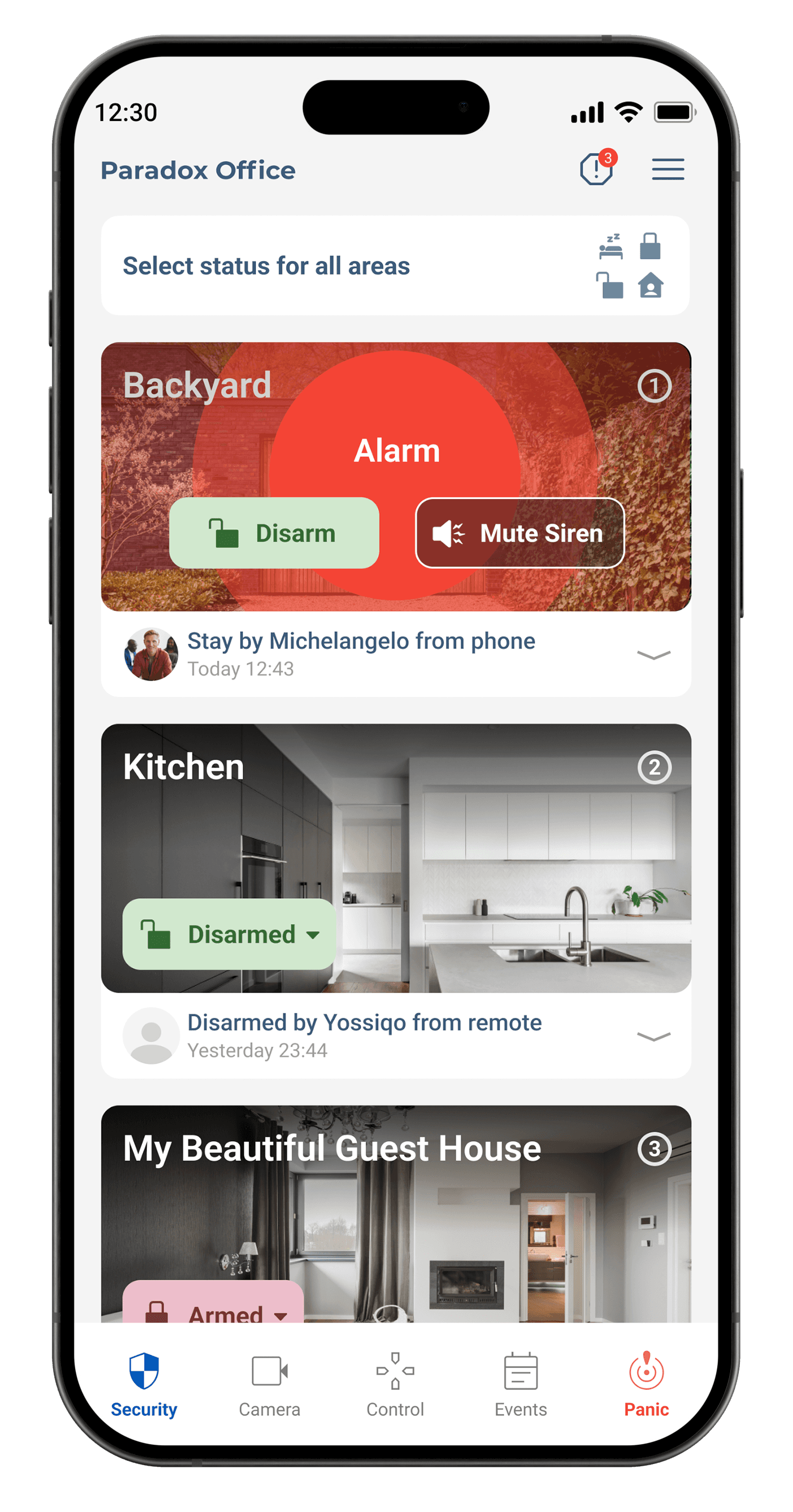
Area Alarm was designed to instantly communicate urgency without creating unnecessary stress. The interface uses a clear visual hierarchy, high-contrast colors, and unmistakable iconography to differentiate alarm events from other system states. Every element prioritizes rapid recognition, helping users understand what happened and where it occurred at a glance. Animations and status transitions reinforce critical feedback while remaining unobtrusive, creating a calm yet highly effective experience during high-pressure situations.

Camera
The Blue Eye camera experience was designed to provide instant awareness and effortless navigation. Users can switch between live view and recorded footage with a seamless timeline, making it easy to review activity in seconds. Smart event markers highlight motion detection, fire alarms, recordings, and other critical incidents directly on the timeline, reducing search time and improving response speed. A clean visual hierarchy keeps live monitoring, playback controls, and event history accessible without overwhelming the interface, delivering a reliable and intuitive surveillance experience for both everyday monitoring and emergency situations.
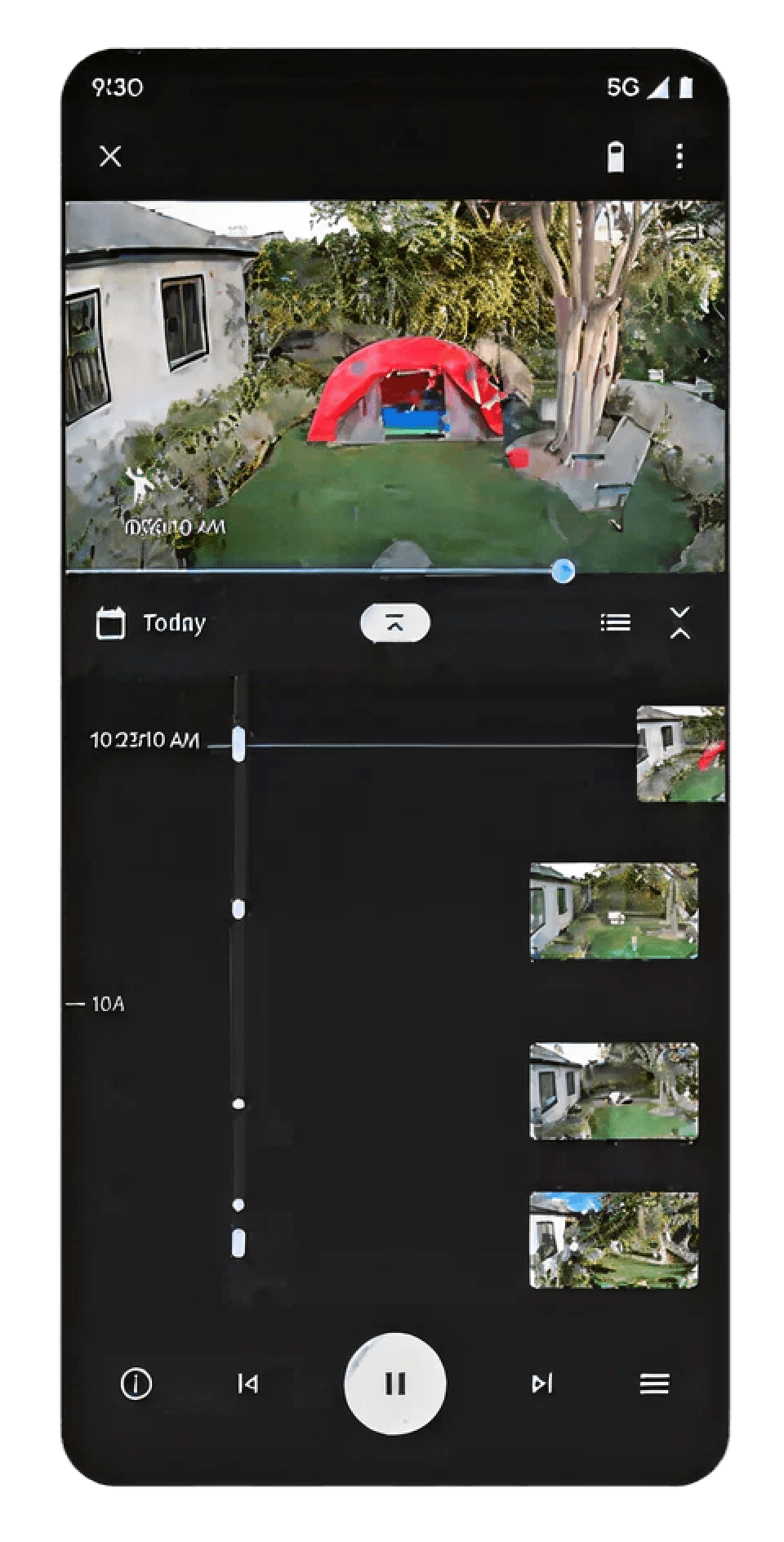


Researched modern camera interfaces, surveillance dashboards, and video streaming applications to create an intuitive, efficient, and consistent user experience.
Timeline Viewer – Paradox Camera Interface
Timeline Viewer – Paradox Camera Interface
This UI is designed to work seamlessly whether the user has a Cloud subscription or not, adjusting the experience based on data availability from either the SD Card or the Cloud.
1. JPEG Snapshots Every 30 Seconds
The camera generates a JPEG snapshot every 30 seconds, stored both on the SD Card and (if subscribed) in the Cloud.
These snapshots are used to populate the visual timeline preview.
2. Video Events (Motion, Intrusion, Alarm, etc.)
The system generates video recordings for key events, such as:
Mo tion detection
Alarm triggers
Recorded
Door open, etc.
Timeline Representation:
Events are shown as highlighted blocks or markers on the timeline.
Clicking an event attempts to load and play the corresponding video.
3. Event Handling Logic Based on Storage Type
When an event occurs — such as motion detection, line crossing, or alarm activation — the system generates a corresponding video clip. The way this event is displayed and accessed in the timeline depends on whether the content is stored in the Cloud or on the SD Card.
If the user has a Cloud subscription:
Events are fully visible on the timeline right away, including preview thumbnails. When the user scrolls to that point in time, the event video is automatically available and plays seamlessly without delay. This results in a smooth and responsive user experience.
If the user does not have a Cloud subscription (SD Card only):
The event is still represented on the timeline, but only as a snapshot (JPEG) marker. The actual video is not loaded automatically. Instead, it is only fetched from the SD Card on demand — when the user clicks the event. Upon doing so, a loading message is shown (e.g., "Loading video from SD Card..."), and a short wait is expected as the system accesses the file from local storage.
This ensures that the interface remains unified while intelligently adapting to the user’s data source and subscription level.
Horizontal Scroll
The horizontal scrolling timeline was designed to make video navigation fast and intuitive. Users can smoothly browse recorded footage while event markers clearly indicate motion detection, fire alarms, and recording periods. Continuous scrolling provides a natural way to explore history without changing screens, enabling quick access to important moments and improving the overall playback experience.


Final Version for Development
The final camera UI delivers a polished, intuitive experience with refined layouts, consistent visual hierarchy, streamlined navigation, and optimized interactions. Every screen was carefully validated to ensure fast access to live video, recordings, event history, and essential camera controls.

Camera List
The camera list provides a clear overview of all connected cameras, displaying status, names, and quick access to live streams, allowing users to switch between locations instantly and efficiently.

Live
The live camera UI provides real-time monitoring with a clean interface, instant video access, and intuitive controls. Users can quickly view streams, switch cameras, manage playback options, and stay informed through clear status indicators and important security events.

Timeline
The timeline UI enables users to quickly navigate recorded footage through a clear visual history. Event markers, timestamps, and playback controls help identify important moments, making video review faster, more precise, and effortless.

Event
Camera events provide quick visibility into important activity, highlighting motion detection, fire alerts, recordings, and security incidents through clear indicators for faster investigation and response.
Summary
Blue Eye empowers users to monitor and control their home security effortlessly through a mobile app. Upon opening the app, users can quickly check system status to ensure all sensors, cameras, and connected devices are active. The system can be armed in Stay mode for when occupants are home, or Sleep mode for overnight protection, and disarmed as needed.
Users can also view live camera feeds, control lights, operate the garage, adjust shutters and curtains, and trigger panic mode in emergencies. Each action provides immediate confirmation, reducing uncertainty and building confidence in daily use.
The design focuses on simplicity and reliability, minimizing subjective inputs to ensure fast, intuitive interactions. By streamlining routine security tasks into a clear, step-by-step flow, Blue Eye enhances user experience while maintaining full home protection, demonstrating the impact of thoughtful, user-centered design in smart home systems.
2
Work Years
100+
Screens
+2000
New Customers