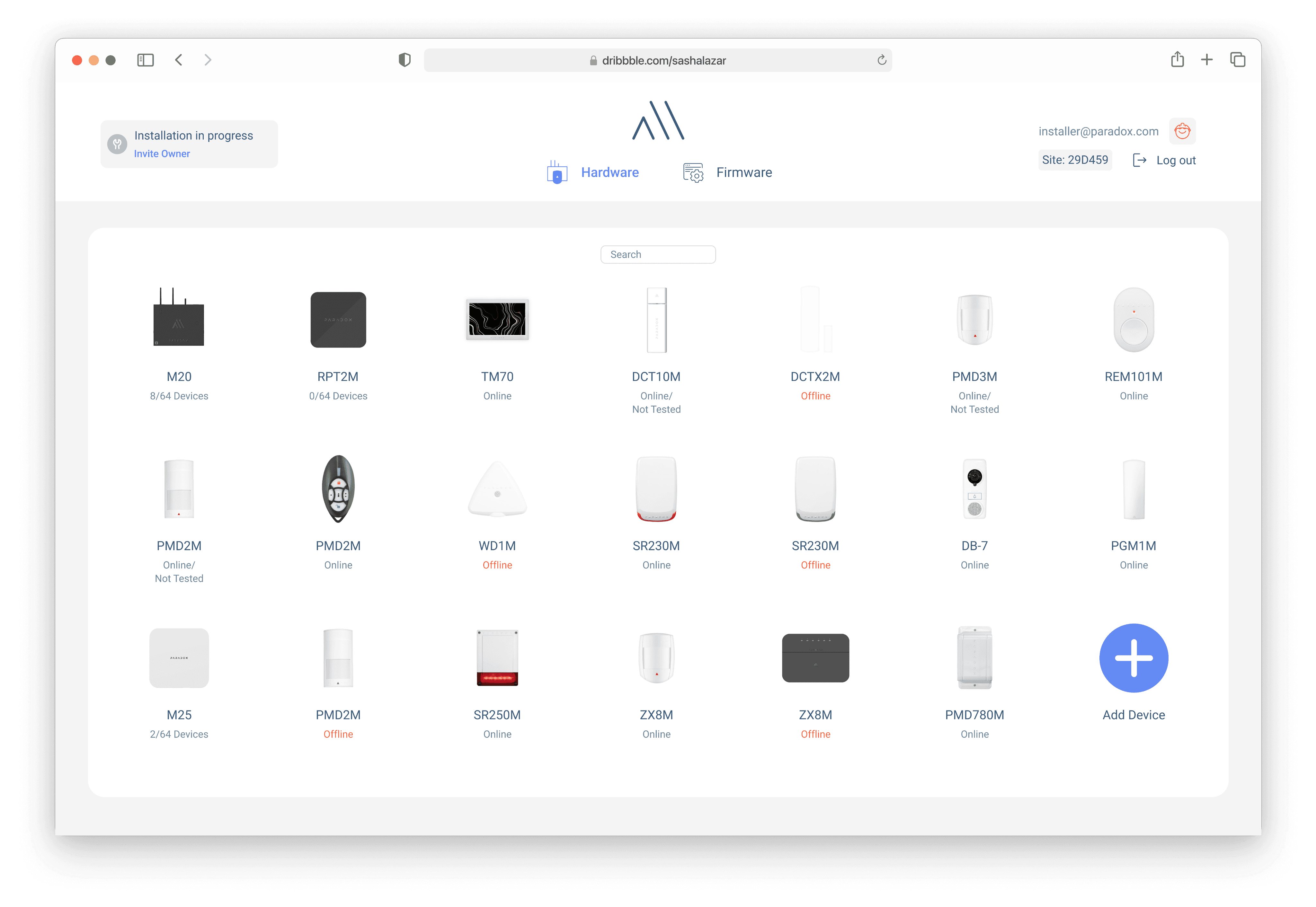
PC Software
The platform streamlines complex installation workflows by combining device management, live system status, remote access, firmware updates, troubleshooting tools, and configuration settings into one unified experience. Designed for both on-site and remote work, the software helps installers manage multiple systems more efficiently while reducing setup time and simplifying technical operations. The focus was creating a fast, reliable, and scalable experience for professional security environments.
The Challenge
How might we bring a mobile-first installer tool to desktop without losing speed, clarity, or simplicity?
Design a PC version of the existing mobile M Installer app
Support complex multi-zone configurations with wired and wireless devices
Ensure flow clarity for both first-time installers and power users
Maintain UI consistency with mobile while leveraging desktop advantages
Abstract
PC software installation is a solved problem that nobody has solved well. Existing installer platforms focus on completing installations but provide little visibility into device readiness, compatibility, or deployment progress. This platform streamlines the entire installation workflow by guiding technicians through every step, validating system requirements, automating repetitive tasks, and tracking progress in real time. The result is faster deployments, fewer installation errors, and a more consistent experience for both installers and customers.
TL;DR → Built a PC software installer platform that streamlines device setup, software deployment, and installer workflows. Scope → Solo, end to end. Concept, UX, design system, prototypes, developer handoff. Stack → Figma, Framer, Lottie, Design System, UX Research. Angle → Installing PC software shouldn't require technical expertise. Remove friction from the installation process, automate repetitive steps, and every deployment becomes faster, more reliable, and easier to manage.
Problem Statment
Nobody Does This
Most homeowners don’t fully understand their security risks until something happens. Traditional home security systems often require complicated setups, expensive installations, and constant manual management. Existing solutions haven’t solved this because they still put the responsibility on users instead of creating a smarter, simpler way to protect their homes.

Research
Helping installers manage complex security systems efficiently proved challenging. Early in the project, we researched installer workflows to understand their struggles and daily needs.
Limited system visibility
Installers need quick access to device status and system information to identify issues faster.
Complex installation flows
Multiple configuration steps increase setup time and the risk of errors.
Field efficiency challenges
Installers need clear guidance and streamlined tools to complete jobs faster and with confidence.
Solution: Not your average PC security software
A smarter security platform designed for installers to configure, manage, and troubleshoot systems faster. By simplifying complex workflows and providing clear system visibility, it helps installers work more efficiently while delivering a better experience for customers.
Simplifying installation workflows.
From the beginning, we focused on helping installers configure and manage security systems faster and with fewer errors. We discovered that installation complexity goes beyond device setup — it involves multiple steps, system checks, and troubleshooting across different platforms.
We designed a unified installer experience that provides clear visibility across the entire system, reducing complexity and helping professionals complete installations with confidence.
An additional layer of control.
Installers can easily monitor system status, identify issues, and manage configurations from one centralized platform — giving them the tools they need without unnecessary complexity.
Complete installations with confidence.
With streamlined workflows and guided processes, installers spend less time searching for solutions and more time delivering reliable security systems to customers.

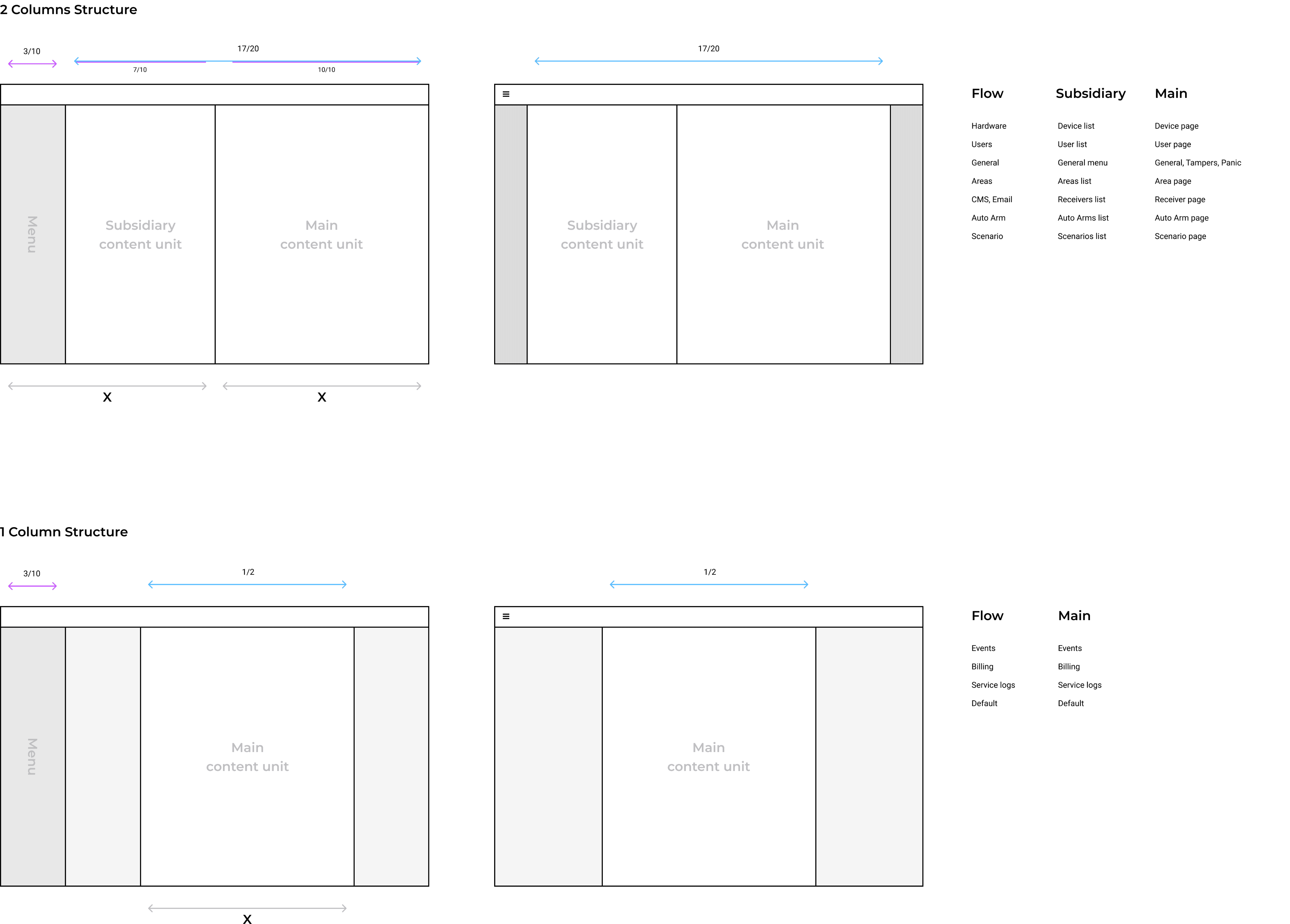
Grid
for the PC software was designed to support complex workflows while maintaining visual clarity and consistency across large interfaces. A flexible multi-column layout allowed different panels, diagnostics, device lists, and configuration tools to coexist without overwhelming the user. Spacing, alignment, and responsive behavior were standardized to create predictable interactions and improve scanability during long sessions. The system also supported scalability, enabling new modules and tools to integrate seamlessly into the interface. By establishing a structured layout foundation, the grid system improved usability, reduced visual clutter, and helped installers manage multiple tasks efficiently within a professional desktop environment.
System
The final stage of the design system focused on validation, documentation, and adoption. All components were reviewed to ensure visual consistency, accessibility compliance, and alignment between design and development. Comprehensive guidelines were created, covering usage, behavior, states, and best practices to help teams implement components correctly. Close collaboration with developers ensured that design tokens, component structures, and interactions were accurately reflected in code. Extensive QA and testing were conducted across products to identify and resolve inconsistencies before release. Finally, the design system was shared with stakeholders and product teams through documentation and onboarding sessions, encouraging adoption and establishing a scalable foundation for future growth. This process improved efficiency, consistency, and collaboration across the entire product ecosystem.

Read this before starting the design
Typography rules:
Noto Sans – Display Semi-Bold → For table titles and configuration titles.
Noto Sans – Display Regular → For content inside configuration selection.
Noto Sans – Display Medium → For table content.
Table - 32 height
Default height:
Main Table - 32 height
Table for configuration (General, ZX10 for example) - 36 height
Top Navigation (Tabs & Actions):
Site List pinned to the top left to allow quick access
Contains open site tabs (e.g., Yossi House, Paradox Office).
Sub-tabs for each tab selected, Firmware for example: General, Areas, Users, Access, Scenarios.
Navigation arrows to move between changes.
Global action buttons on the right: Exit Without Saving and Save (apply to the entire page selected).
Side Menu (Main Navigation)
Always visible on the left side.
Provides quick access to main sections: Hardware, Firmware, Home, Access.
Buttons for connect/disconnect from the site
Colors:
Main color for buttons and other main actions will be black
Check boxes and selection should be green

Color and string variables centralized design decisions, improving consistency, scalability, localization support, maintenance efficiency, and cross-team collaboration.
Collaborations
I collaborated closely with engineers, developers, product managers, QA teams, and cross-functional stakeholders throughout the product lifecycle. By aligning design decisions with technical constraints and business objectives, I helped streamline implementation and reduce development friction. Regular design reviews, workshops, and feedback sessions ensured clear communication, faster iteration, and high-quality outcomes. This collaborative approach enabled efficient problem-solving, consistent user experiences, and successful delivery of complex PC software features.

Design Solution
Focused on transforming a complex PC software installer into a streamlined, user-centered experience. By simplifying navigation, reducing visual clutter, and introducing a clear information hierarchy, the interface became easier to understand for both new and experienced users. A modular design system ensured consistency across every screen while supporting future scalability. Installation progress, system requirements, permissions, and error handling were redesigned to provide clear guidance and reduce uncertainty. Careful attention was given to accessibility, responsive layouts, and intuitive interactions, resulting in a faster, more reliable installation experience that increases user confidence, minimizes friction, and supports efficient software deployment.

Redesigned legacy software into a modern, intuitive platform, improving usability, workflows, navigation, consistency, and overall user experience.
Main Screens
The main flows in PC software were designed to support professional installers managing complex security systems across multiple sites and devices.
Core workflows included system configuration, device enrollment, live diagnostics, firmware management, area and zone programming, user permissions, camera integration, and remote troubleshooting. The platform also supported monitoring real-time system activity, reviewing alerts, and managing automation settings from a centralized workspace.
Because installers often work with large amounts of technical information simultaneously, the experience focused on fast navigation, clear hierarchy, and efficient multitasking. The goal was reducing setup complexity while improving speed, visibility, and overall operational control.


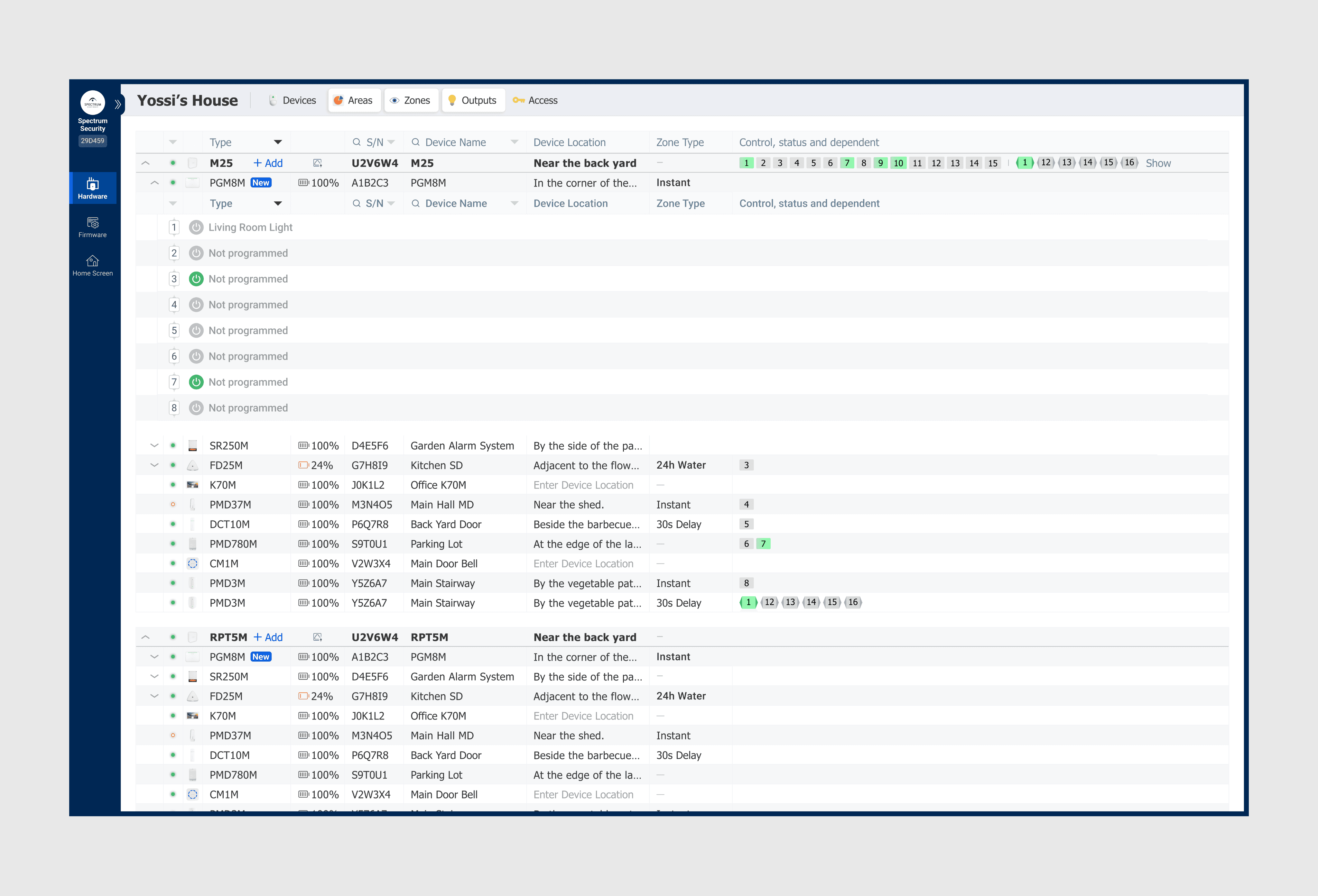

Managed a large-scale design workload, delivering numerous features, design systems, prototypes, and product improvements across multiple software initiatives simultaneously.
Work with AI
Working with AI in PC software development transforms how installation platforms are designed, deployed, and maintained. AI assists in automating device recognition, predicting compatibility issues, and optimizing installation flows across environments. It analyzes event logs, user behavior, and system performance to reduce errors and improve reliability. In design workflows, AI helps generate interface variations, structure complex dashboards, and surface insights from large datasets. For engineering teams, it streamlines debugging, suggests configuration fixes, and supports continuous deployment across zones and receivers. This collaboration creates smarter, adaptive software systems that scale efficiently, reduce manual workload, and improve product quality and user experience.

Figma Make


Claude Code

I work with Claude Code to accelerate the creation of PC software screens, translating product requirements into structured UI components and layout logic. It helps me quickly scaffold interface flows, iterate on screen states, and maintain consistency across complex design systems. I use it to explore variations, validate interaction patterns, and refine edge cases before development. This workflow improves collaboration with engineering, reduces ambiguity, and speeds up the transition from concept to production-ready interface screens.

Conclusion
I am currently working on further improving the redesigned UI based on the legacy system. This phase focuses on refining user flows, optimizing interactions, and ensuring the interface performs smoothly across different scenarios and use cases. I am actively testing components, fixing inconsistencies, and adjusting layouts to improve clarity and accessibility.
Special attention is being given to edge cases inherited from the old system, making sure all critical logic continues to function correctly within the new design.
I am also collaborating with developers to validate technical constraints and ensure accurate implementation of the design. Ongoing feedback is being reviewed and incorporated to enhance usability. The goal of this stage is to finalize a stable, scalable, and user-friendly interface that fully modernizes the system while remaining reliable and easy to maintain.

Overlay Device
The main workspace provides direct configuration of PC software deployment layers. Applications are mapped to devices, build versions, and permission scopes.

Zones View
Software packages are visually mapped across zones, allowing quick comparison of versions, compliance status, and deployment drift across the infrastructure.

Events List
Every device maintains a chronological event stream of installation actions, updates, failures, and policy changes.

Receiver View
The receiver layer manages how devices accept and apply software payloads. It controls distribution channels, scheduling logic, and retry mechanisms.
1.5
Work Years
300+
Screens
7
Tools
3120
Work hours